• Windows key - access Start menu
• Windows key + Pause - open System Properties
• Windows key + D - minimise/restore windows
• Windows key + F - open Search window
• Windows key + F1 - open Help and Support Center
• Windows key + E - open Windows Explorer window
• Windows key + M - minimise all windows
• Windows key + TAB - move through open windows on Taskbar
• Windows key + SHIFT + M - restore all windows
• Hold CTRL while dragging - make a copy of selected item
• Hold CTRL + SHIFT while dragging - make a shortcut to selected item
• CTRL + ESC - open Start menu
• CTRL + C - Copy
• CTRL + X - Cut
• CTRL + V - Paste
• CTRL + A - Select All
• CTRL + Z - Undo
• CTRL + B - Bold highlighted text
• CTRL + U - Underline highlighted text
• CTRL + I - Italicise highlighted text
• CTRL + Plus key - increase browser text size
• CTRL + Minus key - decrease browser text size
• CTRL + ALT + DELETE - open Task Manager
• ALT + underlined letters in menus - open menu item
• ALT + ENTER - show Properties of selected object
• ALT + F4 - close current window or program
• CTRL + F4 - close window within program
• ALT + TAB - switch between open windows or programs
• TAB - move forwards through control items or links in current window
• SHIFT + TAB - move backwards through control items or links
• ENTER - click selected control item or link
• BACKSPACE - move up one folder level
• HOME - go to start of current line or web page
• END - go to end of current line or web page
• CTRL + END - go to end of current document
• PAGE UP - move up through current document or web page
• PAGE DOWN - move down through current document or web page
• PRINT SCREEN - take snapshot image of current screen
• ALT + PRINT SCREEN - take snapshot image of current window
• F2 - rename selected item
• F5 - refresh current window or web page
• F6 - move through window panes
Showing posts with label Shortcut. Show all posts
Showing posts with label Shortcut. Show all posts
Wednesday, 8 February 2012

Sunday, 9 October 2011
Run taskbar application
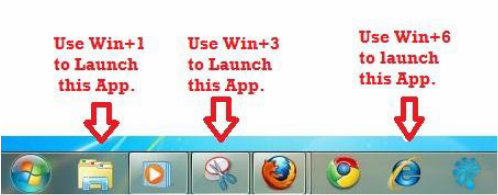
if you wish to open your taskbar application without using mouse, then press windows+task serial naumber.
for instance, if you press windows+1, your first taskbar application will open, like that to open your 5th taskbar application press windows+5.
for instance, if you press windows+1, your first taskbar application will open, like that to open your 5th taskbar application press windows+5.
Add Comment
Create Shortcut key for any application in Windows 7
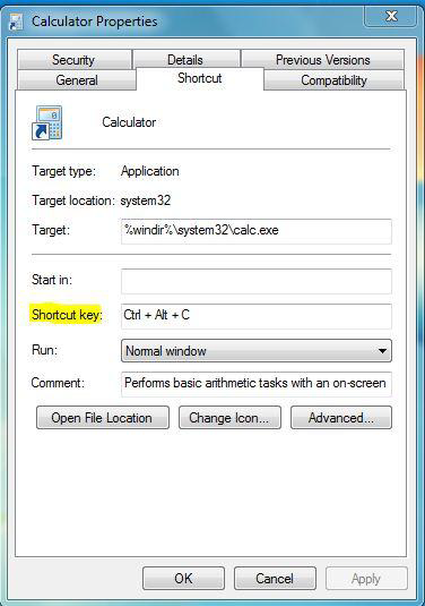
1. Right-click the program icon and select Properties.
2. Select the Shortcut tab
3. Click in Shortcut key textbox
4. Enter the keyboard shortcut for that program.
5. Press OK to exit.
6. Use the Keyboard shortcut combo to launch the application.
Like the way i have used a combo of keys Ctrl+Alt+C to launch calculator application other applications can also be launched using Shortcut keys.
2. Select the Shortcut tab
3. Click in Shortcut key textbox
4. Enter the keyboard shortcut for that program.
5. Press OK to exit.
6. Use the Keyboard shortcut combo to launch the application.
Like the way i have used a combo of keys Ctrl+Alt+C to launch calculator application other applications can also be launched using Shortcut keys.
Like the way i have used a combo of keys Ctrl+Alt+C to launch calculator application other applications can also be launched using Shortcut keys.
Subscribe to:
Posts (Atom)